Configuring VeriTrans on EC-CUBE
Prerequisites
A completed VeriTrans contract is required.
Note that there are separate module settings for testing and production.
The key points are summarized below.
Points to note
The production VeriTrans payment module
starts incurring charges from the moment VeriTrans is activated.
The general flow is to consider the following:
- Receive the test module information for the staging environment from the operations team and configure it.
- Request activation of the production VeriTrans roughly 1 to 2 weeks before the service launch, then configure the production module.
Procedure
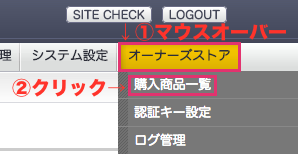
From the admin panel, click Owner’s Store > Purchased Products List.
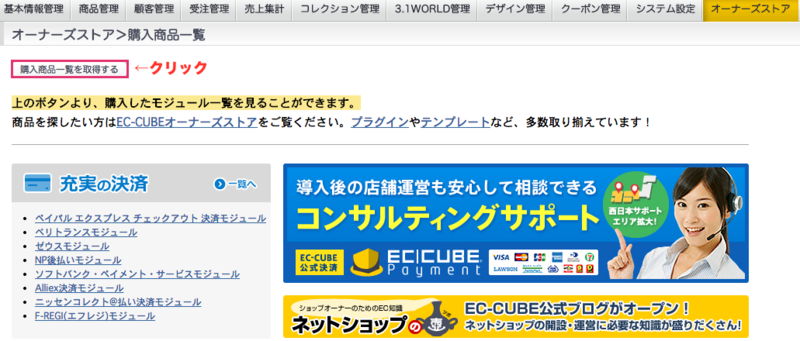
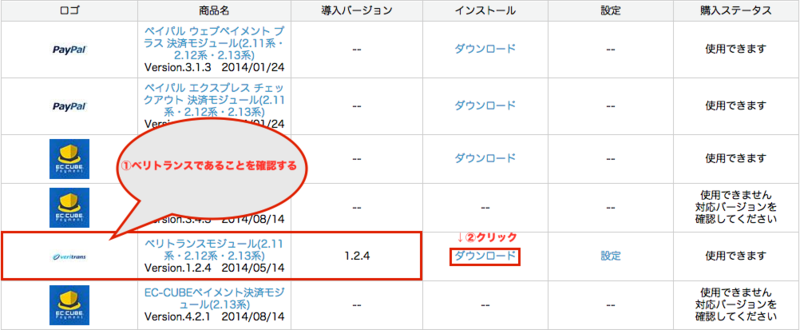
If the module has not been downloaded, click the download link on the VeriTrans row.
- If the download fails, check the logs.
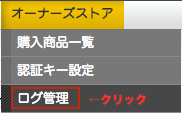
- Click Log Management > Details.
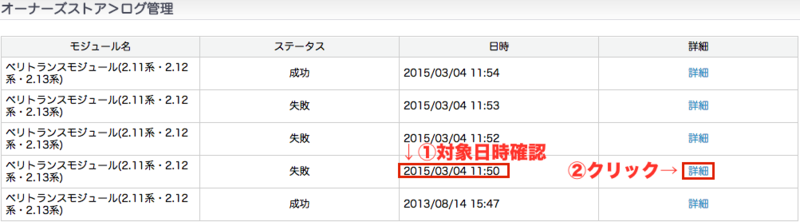
- Check the log status.
This is usually caused by a lack of write permissions, so grant write permissions.
1 | chmod -R 0777 (EC-CUBEパス)/data/downloads |
- Run the download again.
Click the configuration link on the VeriTrans row.
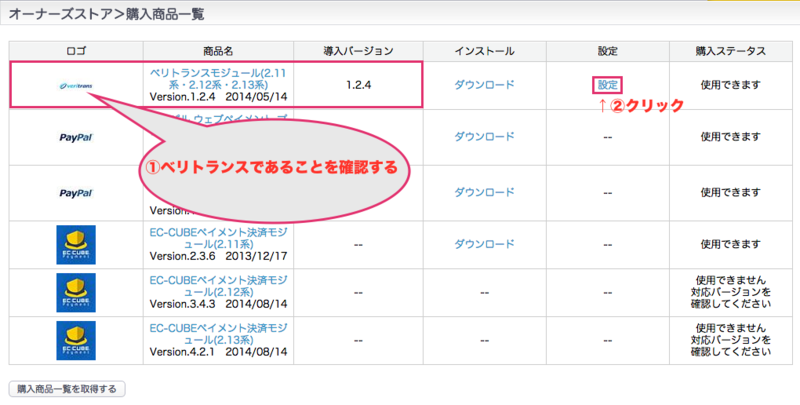
A window like the following appears in a separate window, where you enter the information.
Configure each field of the VeriTrans 3G MDK payment module.
Set the Merchant CCID and the authentication key.
The transaction ID prefix is a string appended to the payment information.
For testing, include something like the configured date as shown below.
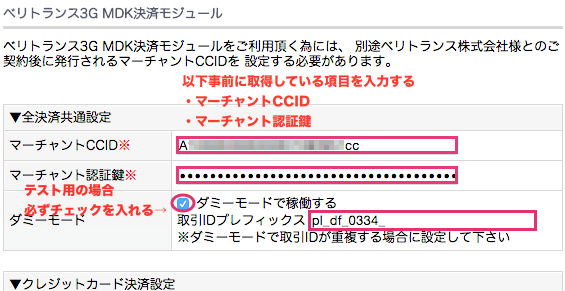
The transaction ID prefix is generally fine when set roughly as follows:
- For testing : (site alias)df(configuration date)_
- For production : (site alias)df
You may sometimes synchronize the production DB into the test DB.
Once already-settled payment information flows in, payments will no longer go through, so when synchronizing from the production DB to the test DB, make sure to change the test transaction ID prefix.
Credit card settings
The following is the basic set.
Unless the client gives special instructions, the following is fine.
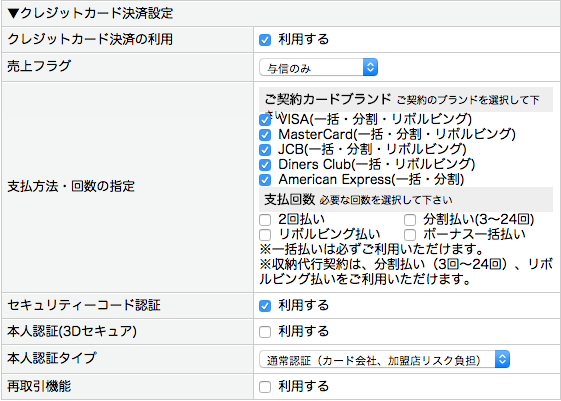
About other payment settings
Unless instructed by the client, uncheck the “Enable” checkbox.
- Convenience store payment settings
- Electronic money (Edy) payment settings
- Electronic money (Suica) payment settings
- Bank / postal savings (Pay-easy) payment settings
- UnionPay online payment settings
- PayPal payment settings
Overwrite file list settings
Select the radio button for “Do not overwrite files automatically (for customization users)”.
Register settings
Click the “Register with this content” button.
Once the settings are applied, you will see a popup like the following.
I will continue and cover the
payment settings and so on.
References
That’s all.
