
Easily Manage SSH Access to AWS EC2 by IAM User or Group with EC2 Instance Connect
Overview
On 2019-06-28, EC2 Instance Connect was announced!
With this, you can grant SSH access permissions using security groups and IAM permissions.
For example,
you can grant SSH access permission only from the company's IP to IAM Users that belong to a specific IAM User Group,
and when someone moves to another project or leaves the company, you can revoke their SSH access permission simply by removing them from that IAM User Group.
Test Environment
I tried this on macOS 10.14.3.
Prerequisites
$ pip install -U awscli

$ aws s3api get-object --bucket ec2-instance-connect --key cli/ec2instanceconnectcli-latest.tar.gz ec2instanceconnectcli-latest.tar.gz

$ sudo pip install ec2instanceconnectcli-latest.tar.gz
Add the following to the permissions of the IAM User you created
{
    "Version": "2012-10-17",
    "Statement": [
        {
            "Sid": "EC2InstanceConnect",
            "Action": [
                "ec2:DescribeInstances",
                "ec2-instance-connect:SendSSHPublicKey"
            ],
            "Effect": "Allow",
            "Resource": "*"
        }
    ]
}
This is something you'd want to manage with terraform.
OSes Supported by EC2 Instance Connect
- Ubuntu>=16.04
- AmazonLinux2>=2.0.20190618
Configuration on the EC2 Side You SSH Into
Ubuntu>=16.04
You need to install ec2-instance-connect in advance.
$ sudo apt-get update && sudo apt-get install ec2-instance-connect
$ dpkg -l | grep ec2-instance-connect

ii  ec2-instance-connect           1.1.9-0ubuntu3~18.04.1            all          Configures ssh daemon to accept EC2 Instance Connect ssh keys
AmazonLinux2>=2.0.20190618
ec2-instance-connect is already configured.
Security Group
The security group of the EC2 instance you SSH into must have SSH (port 22) open from the source.
Trying to SSH In
local%$ mssh ubuntu@i-0f123456abcdefg --profile <profile> --region ap-northeast-1
At first glance, it looks like everyone logs in as ubuntu, which might make you worried about auditing, but CloudTrail properly records who logged in.
CloudTrail
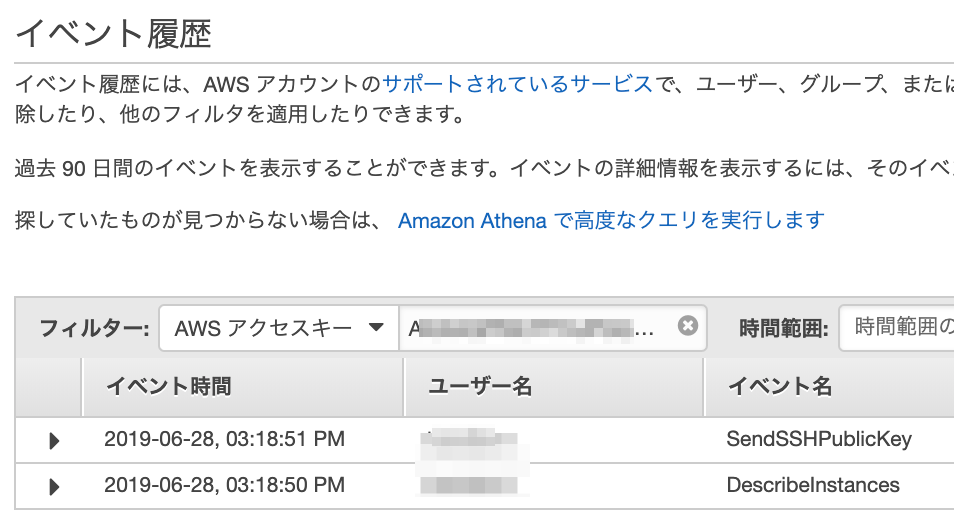
Logs remain for the following events.
- SendSSHPublicKey
- DescribeInstances
Clicking the "View event" button on SendSSHPublicKey displays the JSON, in which you can see the source IP, IAM User Arn, and the target instance ID.
{
    "eventVersion": "1.05",
    "userIdentity": {
        "type": "IAMUser",
        "principalId": "ABCDEFGHIJK....",
        "arn": "arn:aws:iam::123456789012:user/hogehoge",
        "accountId": "123456789012",
        "accessKeyId": "AKIxxxxxxxxxxxxxxxx",
        "userName": "hogehoge",
        "sessionContext": {
            "attributes": {
                "mfaAuthenticated": "false",
                "creationDate": "2019-06-28T06:18:50Z"
            }
        }
    },
    "eventTime": "2019-06-28T06:18:51Z",
    "eventSource": "ec2-instance-connect.amazonaws.com",
    "eventName": "SendSSHPublicKey",
    "awsRegion": "ap-northeast-1",
    "sourceIPAddress": "xx.xxx.xxx.xxx",
    "userAgent": "aws-ec2-instance-connect-cli/1.0.0 Python/2.7.16 Darwin/18.2.0 Botocore/1.12.179",
    "requestParameters": {
        "instanceId": "i-0f.......",
        "osUser": "ubuntu",
        "SSHKey": {
            "publicKey": "ssh-rsa AAAAB....rHb"
        }
    },
    "responseElements": null,
    "requestID": "01234567-890a-1234-5b6d-......",
    "eventID": "f51...",
    "eventType": "AwsApiCall",
    "recipientAccountId": "123456789012"
}
With this, you can see the access history of the EC2 instance and so on.
Summary
Managing SSH accounts used to be a hassle, but managing it with IAM permissions has made it remarkably easy!
And auditing with CloudTrail is rock solid!
